Setting Up a Headless Raspberry Pi 5 Server


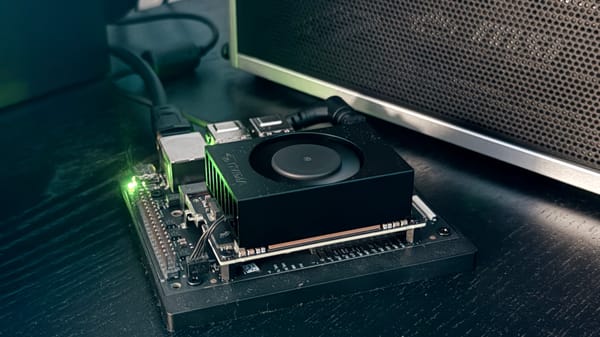
Field notes from flatline - my freshly built Pi 5 homelab node.
Why this guide exists
Most Raspberry Pi tutorials still assume you're running off a microSD card, connected to a monitor, and tinkering for fun. This one doesn't.
This guide is for people who want to run a proper headless server (no screen, no keyboard, SSH only) on a Raspberry Pi 5 with a NVMe SSD, Docker, and a hardened SSH setup. The kind of machine you set once and forget about, humming quietly in a corner of your homelab.
My node is called flatline. Let's build yours.
What you'll need
- A Raspberry Pi 5 (4GB or 8GB, I'm running 16GB)
- A NVMe M.2 SSD and a compatible HAT/adapter for the Pi 5
- A Mac or PC to flash the OS
- An ethernet cable (Wi-Fi is fine for tinkering, not for a server)
- Raspberry Pi Imager installed on your machine
Flash directly to the NVMe with Raspberry Pi Imager
The Pi 5 can boot directly from NVMe, and Raspberry Pi Imager can flash straight to it if the drive is accessible from your machine.
Open Raspberry Pi Imager and go through the steps:
Choose device → Raspberry Pi 5
Choose OS → Raspberry Pi OS Lite (64-bit). This is the headless version — no desktop environment, no bloat.
Choose storage → Select your NVMe drive. Double-check the size to make sure you're targeting the right device.
Before clicking Write, hit Edit Settings (or the gear icon in older versions). This is where Imager lets you pre-configure everything before first boot — hostname, user, SSH, Wi-Fi. Fill in :
- Hostname
- Username and password
- Enable SSH → Allow public-key authentication only, and paste your public key
Click Save, then Write. Imager will flash and verify the image.
Once done, plug the NVMe into your Pi, power it on, no microSD, no monitor. The Pi 5 will boot directly from the NVMe without any extra configuration needed.
Give it 30 seconds, then from your machine :
ssh youruser@flatline
If you land in a shell, you're in.
Enable PCIe Gen 3
By default, the Pi 5's PCIe interface runs at Gen 2 speed. The Pi 5 officially supports Gen 3 (it's not certified, but it works reliably in practice), which gives you significantly better NVMe throughput.
Enable it via raspi-config :
sudo raspi-config
Navigate to Advanced Options → PCIe Speed → Yes (enable PCIe Gen 3).
Confirm and reboot :
sudo reboot
The difference in sequential read/write speeds is noticeable, especially relevant if you're running databases or heavy I/O workloads.
Update the system and firmware
First things first :
sudo apt update && sudo apt full-upgrade -y
Then check if the EEPROM bootloader firmware is up to date :
sudo rpi-eeprom-update -a
If it reports an update, reboot to apply it. If it says up to date, you're already on the latest firmware.
Install Docker
Use the official install script :
curl -fsSL https://get.docker.com | sh
Add your user to the Docker group so you don't need sudo for every command :
sudo usermod -aG docker $USER
Log out and back in for the group change to take effect, then verify :
docker run hello-world
Enable Docker to start automatically on boot :
sudo systemctl enable docker
Harden SSH
If you pre-configured SSH keys in Imager, your key is already in ~/.ssh/authorized_keys. Let's make sure password authentication is disabled server-side as well :
sudo nano /etc/ssh/sshd_config
Make sure these lines are set :
PasswordAuthentication no
PermitRootLogin no
Restart SSH :
sudo systemctl restart ssh
On your Mac, add an entry to ~/.ssh/config so you never have to specify the key or username manually :
Host flatline
    User youruser
    HostName flatline
    IdentityFile ~/.ssh/id_ed25519_homelab
From now on, ssh flatline is all you need.
Where things stand
flatline is now a clean, headless Pi 5 server booting from NVMe at Gen 3 speed, running Docker, accessible only via SSH key. The firmware is current, unnecessary services are off, and the SSH surface is minimal.
A solid foundation. Next step: actually deploying something on it.
Next up: add a GitHub Runner and deploy things on it.