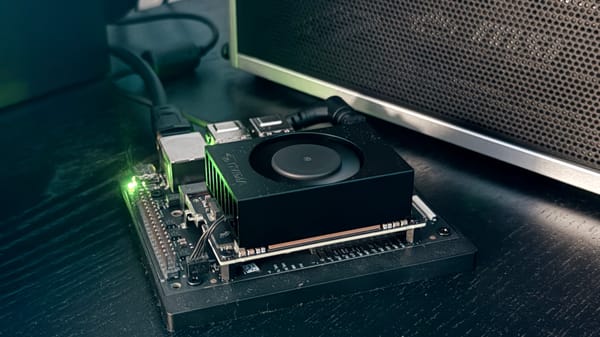
How to Boot a Jetson Nano Super from NVMe SSD (JetPack 6)

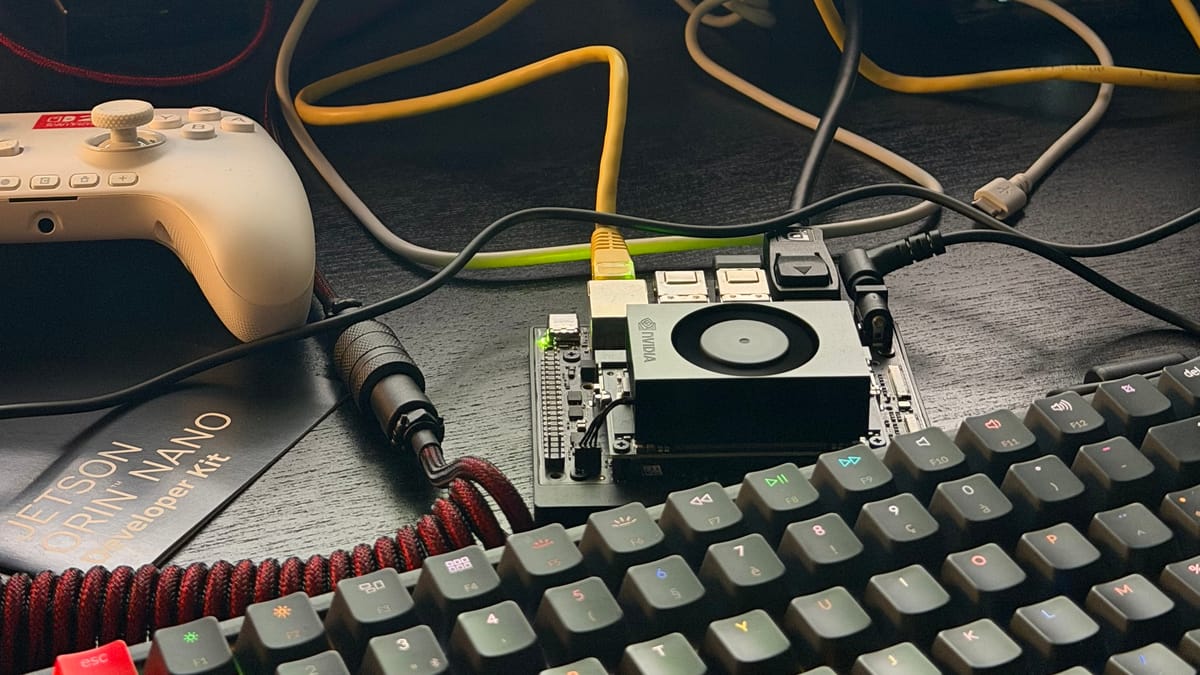
By default, the Jetson Nano Super boots from a microSD card. While this works fine for basic use, an NVMe SSD offers significantly better I/O performance (especially important for workloads like Docker containers, local LLM inference, or any disk-intensive task). In this guide, we'll clone the SD card to the NVMe and configure the system to boot from it.
Prerequisites
- Jetson Nano Super running JetPack 6 (R36)
- NVMe SSD installed and detected by the system
- SSH access to the Jetson
Verify your NVMe is detected:
lsblk
You should see nvme0n1 in the output.
Step 1 : Clone the SD Card to the NVMe
Use dd to copy the entire SD card to the NVMe. Run this inside a tmux session to avoid interruption if your SSH connection drops:
sudo tmux new -s clone
sudo dd if=/dev/mmcblk0 of=/dev/nvme0n1 bs=4M status=progress conv=fsync
This takes a few minutes depending on your SD card size. Wait for the command to complete before proceeding. (If the connection drops and dd is interrupted, simply re-run the same command — it will overwrite the NVMe from scratch.)
Step 2 : Repair and Resize the NVMe Partition
After cloning, the filesystem needs a check and the root partition needs to be expanded to use the full NVMe capacity.
sudo apt install cloud-guest-utils
sudo e2fsck -f /dev/nvme0n1p1
sudo growpart /dev/nvme0n1 1
sudo resize2fs /dev/nvme0n1p1
You can verify the result with lsblk — nvme0n1p1 should now reflect the full SSD size.
Step 3 : Update the Boot Configuration
The cloned bootloader still points to the SD card as the root filesystem. Mount the NVMe root partition and edit extlinux.conf:
sudo mkdir -p /mnt/nvme
sudo mount /dev/nvme0n1p1 /mnt/nvme
cat /mnt/nvme/boot/extlinux/extlinux.conf
You'll see something like:
APPEND ${cbootargs} root=/dev/mmcblk0p1 rw rootwait ...
Replace mmcblk0p1 with nvme0n1p1:
sudo sed -i 's|root=/dev/mmcblk0p1|root=/dev/nvme0n1p1|g' /mnt/nvme/boot/extlinux/extlinux.conf
sudo umount /mnt/nvme
Step 4 : Copy the EFI Partition to the NVMe
On JetPack 6, /boot/efi is a separate partition that lives on the SD card (mmcblk0p10) by default. We need to copy its contents to the NVMe equivalent (nvme0n1p10).
Do not use dd here — it would duplicate the partition UUID, causing /etc/fstab to mount the wrong device. Instead, format the NVMe EFI partition fresh and copy the contents manually:
sudo mkfs.fat -F 32 /dev/nvme0n1p10
sudo mkdir -p /mnt/nvme-efi
sudo mount /dev/nvme0n1p10 /mnt/nvme-efi
sudo cp -r /boot/efi/* /mnt/nvme-efi/
sudo umount /mnt/nvme-efi
Get the new UUID and update /etc/fstab:
sudo blkid /dev/nvme0n1p10
sudo sed -i 's|UUID=<old-uuid>|UUID=<new-uuid>|' /etc/fstab
Verify the result with cat /etc/fstab — the /boot/efi line should now reference the NVMe UUID.
Step 5 : Verify Boot Order
efibootmgr -v
On a Jetson Nano Super with an NVMe installed, the NVMe entry is typically already first in BootOrder (check BootCurrent to confirm). If it's not, move it to the top:
sudo efibootmgr -o XXXX,YYYY,...
Step 6 : Reboot and Verify
sudo reboot
After rebooting, verify you're running from the NVMe:
lsblk
df -h /
The root filesystem / should now be mounted on /dev/nvme0n1p1, and /boot/efi on /dev/nvme0n1p10. The SD card will no longer appear in lsblk if removed.
Once confirmed, you can safely power down the Jetson and remove the SD card (it's no longer needed):
sudo poweroff
Tested on Jetson Orin Nano Super, JetPack 6.2 (R36.4.7)