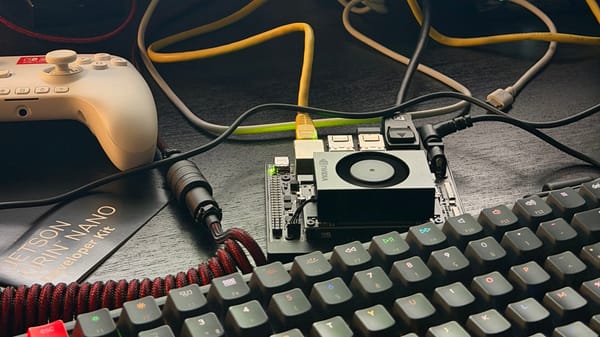
Running a Local LLM on the NVIDIA Jetson Orin Nano Super

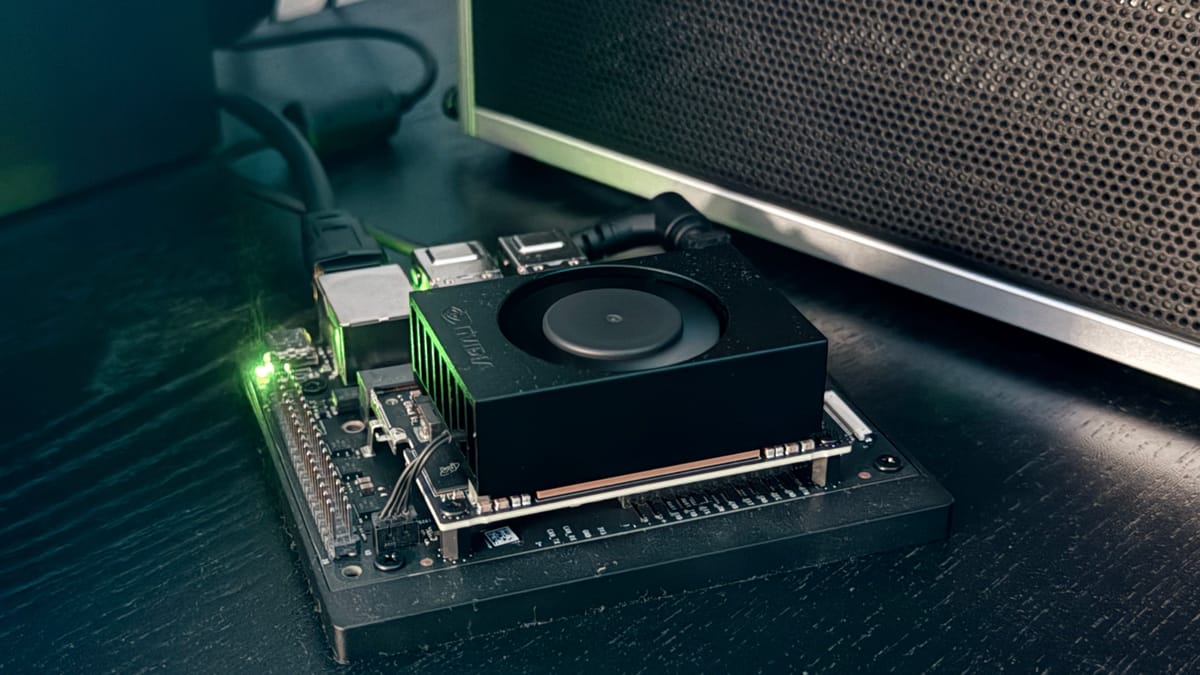
The Jetson Orin Nano Super is a compact edge AI board that packs a serious punch: an Ampere GPU with 1024 CUDA cores, 8GB of unified memory shared between CPU and GPU, and full JetPack 6 support. In this tutorial, I'll go from a fresh Jetson to a fully functional local LLM in a few commands.
Target hardware: NVIDIA Jetson Orin Nano Super (8GB)
JetPack version: 6.4 (R36.4.7)
Model: Qwen3-4B-Instruct via Ollama
Prerequisites
You should already have:
- A flashed Jetson Orin Nano Super running JetPack 6.x
- SSH or terminal access
- An internet connection
No need for PyTorch, TensorRT, or any heavy ML framework. I'll keep the stack minimal.
Step 1 : Verify Your JetPack Version
cat /etc/nv_tegra_release
You should see something like:
# R36 (release), REVISION: 4.7, GCID: 42132812, BOARD: generic, EABI: aarch64
R36.x means JetPack 6, which is what I need for modern CUDA support.
Step 2 : Fix the CUDA PATH
CUDA 12.6 is installed by JetPack but not added to your PATH by default. Fix that:
echo 'export PATH=/usr/local/cuda/bin:$PATH' >> ~/.bashrc
echo 'export LD_LIBRARY_PATH=/usr/local/cuda/lib64:$LD_LIBRARY_PATH' >> ~/.bashrc
source ~/.bashrc
Verify it works:
nvcc --version
# nvcc: NVIDIA (R) Cuda compiler driver
# Copyright (c) 2005-2024 NVIDIA Corporation
# Built on Wed_Aug_14_10:14:07_PDT_2024
# Cuda compilation tools, release 12.6, V12.6.68
# Build cuda_12.6.r12.6/compiler.34714021_0
Step 3 : Install Ollama
Ollama is by far the easiest way to run LLMs on Jetson. The install script automatically detects JetPack and downloads the optimized ARM64 + CUDA build:
curl -fsSL https://ollama.com/install.sh | sh
You'll notice it downloads two packages:
>>> Downloading ollama-linux-arm64.tar.zst
>>> Downloading ollama-linux-arm64-jetpack6.tar.zst
>>> NVIDIA JetPack ready.
That second package is the Jetson-specific CUDA backend.
Step 4 : Run Your First Model
I'll use Qwen3-4B-Instruct, a capable 4B instruction-tuned model that fits well within the Jetson's 8GB unified memory:
ollama run Jadio/Qwen3_4b_instruct_q4km
Ollama will pull the model and drop you into an interactive chat. Try it:
>>> Tell me a short story about a dog who loves tea
To benchmark inference speed, add --verbose:
ollama run Jadio/Qwen3_4b_instruct_q4km --verbose
At the end of each response you'll see:
prompt eval rate:   31.31 tokens/s
eval rate:          17.54 tokens/s
On the Jetson Orin Nano Super, expect around 17-19 tokens/s for generation with a Q4_K_M quantized 3-4B model, more than enough for interactive use.
Step 5 : Use Your Own GGUF Model (Optional)
If the model you want isn't in the Ollama registry, you can import any GGUF file directly. Download the GGUF first (I'll use uv and huggingface-cli):
# Install uv (fast Python package manager)
curl -LsSf https://astral.sh/uv/install.sh | sh
source ~/.bashrc

# Install huggingface_hub CLI
uv tool install huggingface_hub

# Download a model (example: Nanbeige 4.1 3B)
hf download DevQuasar/Nanbeige.Nanbeige4.1-3B-GGUF \
  --include "*Q4_K_M*" \
  --local-dir ~/models/nanbeige4.1-3b
Then create an Ollama Modelfile:
cat > ~/Modelfile << EOF
FROM /home/your-user/models/nanbeige4.1-3b/Nanbeige.Nanbeige4.1-3B.Q4_K_M.gguf
EOF

ollama create nanbeige-q4 -f ~/Modelfile
ollama run nanbeige-q4
Memory Considerations
The Jetson Orin Nano Super has 8GB of unified memory shared between CPU and GPU. This means CUDA allocations and system RAM compete for the same pool. A few practical limits:
| Model size | Quantization | Context | Fits? |
|---|---|---|---|
| 3B | Q4_K_M | 4096 | ✅ Comfortably |
| 4B | Q4_K_M | 2048 | ✅ With Ollama |
| 7B | Q4_K_M | 2048 | ⚠️ Tight |
| 8B+ | Q4_K_M | any | ❌ OOM |
Stick to 3B-4B models with Q4_K_M quantization for a smooth experience. Ollama handles memory allocation more gracefully than running llama.cpp directly, which is one of the reasons I recommend it here.
Bonus : Monitor GPU Usage
While the model is running, open a second terminal and check real-time GPU/memory stats:
watch -n 1 tegrastats
You'll see memory usage, GPU load, and CPU frequency all in one view, useful for confirming the GPU is actually being used for inference.
What's Next?
Now that you have a local LLM running on your Jetson, a few natural next steps:
- Expose an OpenAI-compatible API — Ollama's API is already compatible, so you can point any OpenAI SDK client at
http://localhost:11434and it just works. - Try a reasoning model — Models like Nanbeige 4.1 include a thinking phase (
<think>...</think>) before responding. Interesting to observe, though resource-intensive on constrained hardware. - Compare models — Run
ollama run llama3.2:3b,ollama run qwen2.5:3b, and your custom import side by side to find your favorite for the use case.
Coming Next : Rehoboam
Having a local LLM running on your Jetson opens the door to something more interesting than a chatbot. In a next article, I'll build Rehoboam, a divergence analysis system inspired by Westworld's sphere.
The idea: feed it real data sources (RSS feeds, system metrics, logs, external APIs), and let the LLM evaluate the criticality of each event, returning a structured score and trajectory. FastAPI acts as the backbone, ollama serve handles inference locally, and a dashboard renders the divergences in real time.
No cloud. No telemetry. Everything runs on the Jetson.
See you next time !
Yacine