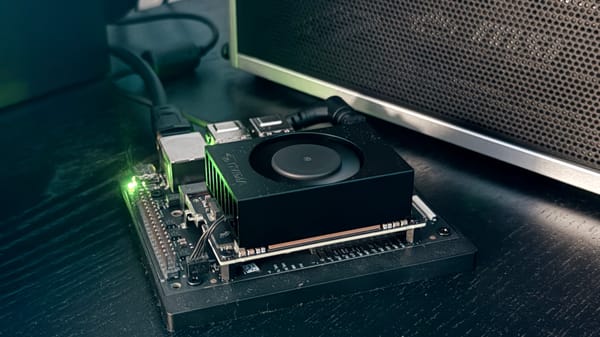
How to Boot a Jetson Nano Super from NVMe SSD (JetPack 6)

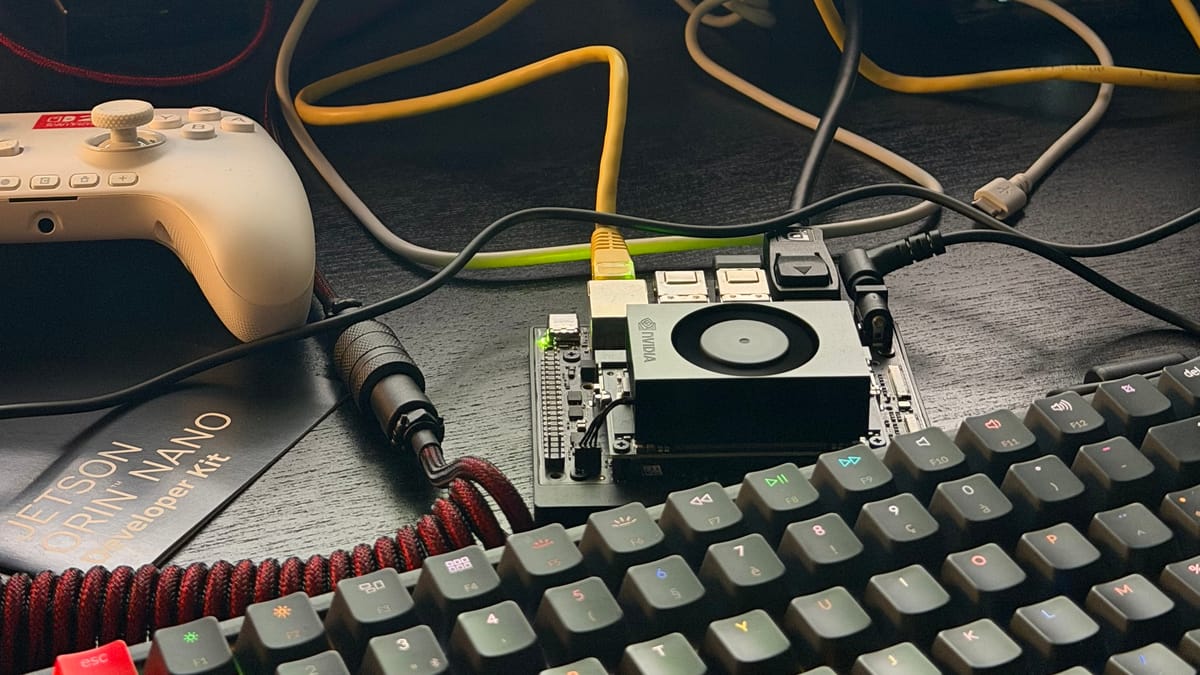
By default, the Jetson Nano Super boots from a microSD card. While this works fine for basic use, an NVMe SSD offers significantly better I/O performance — especially important for workloads like Docker containers, local LLM inference, or any disk-intensive task. In this guide, we'll clone the SD card to the NVMe and configure the system to boot from it.
Prerequisites
- Jetson Nano Super running JetPack 6 (R36)
- NVMe SSD installed and detected by the system
- SSH access to the Jetson
Verify your NVMe is detected:
lsblk
You should see nvme0n1 in the output.
Step 1: Clone the SD Card to the NVMe
Use dd to copy the entire SD card to the NVMe. Run this inside a tmux session to avoid interruption if your SSH connection drops:
sudo tmux new -s clone
sudo dd if=/dev/mmcblk0 of=/dev/nvme0n1 bs=4M status=progress conv=fsync
This takes a few minutes depending on your SD card size. Wait for the command to complete before proceeding.
Note: If the connection drops and dd is interrupted, simply re-run the same command — it will overwrite the NVMe from scratch.Step 2: Repair and Resize the NVMe Partition
After cloning, the filesystem needs a check and the root partition needs to be expanded to use the full NVMe capacity.
# Install growpart if not already available
sudo apt install cloud-guest-utils

# Check and repair the filesystem
sudo e2fsck -f /dev/nvme0n1p1

# Expand the partition to fill available space
sudo growpart /dev/nvme0n1 1

# Resize the filesystem
sudo resize2fs /dev/nvme0n1p1
You can verify the result with lsblk — nvme0n1p1 should now reflect the full SSD size.
Step 3: Update the Boot Configuration
The cloned bootloader still points to the SD card as the root filesystem. We need to fix that.
Mount the NVMe root partition and edit extlinux.conf:
sudo mkdir -p /mnt/nvme
sudo mount /dev/nvme0n1p1 /mnt/nvme
Check the current config:
cat /mnt/nvme/boot/extlinux/extlinux.conf
You'll see something like:
APPEND ${cbootargs} root=/dev/mmcblk0p1 rw rootwait ...
Replace mmcblk0p1 with nvme0n1p1:
sudo sed -i 's|root=/dev/mmcblk0p1|root=/dev/nvme0n1p1|g' /mnt/nvme/boot/extlinux/extlinux.conf
Step 4: Copy the EFI Partition to the NVMe
On JetPack 6, /boot/efi is a separate partition. By default it's on the SD card (mmcblk0p10). We need to copy it to the NVMe equivalent (nvme0n1p10) so the system can boot without the SD.
sudo umount /boot/efi
sudo dd if=/dev/mmcblk0p10 of=/dev/nvme0n1p10 bs=4M status=progress
sudo mount /dev/nvme0n1p10 /boot/efi
Since the NVMe partition is a clone of the SD, the UUID is identical — so /etc/fstab doesn't need any changes.
Step 5: Set Boot Order
Check the current UEFI boot order:
efibootmgr -v
Look for the NVMe entry (it will mention your SSD model). If it's not already first in BootOrder, move it to the top:
sudo efibootmgr -o XXXX,YYYY,... # Put the NVMe entry number first
In practice, on a fresh Jetson Nano Super setup, the NVMe may already be first in the boot order after the clone.
Step 6: Reboot and Verify
sudo umount /mnt/nvme
sudo reboot
After rebooting, verify you're running from the NVMe:
lsblk
df -h /
The root filesystem / should now be mounted on /dev/nvme0n1p1, and /boot/efi on /dev/nvme0n1p10. The SD card will no longer appear in lsblk if removed.
Removing the SD Card
Once confirmed, you can safely power down the Jetson and remove the SD card. It's no longer needed.
sudo poweroff
Tested on Jetson Nano Super, JetPack 6.0 (R36 rev 4.7)